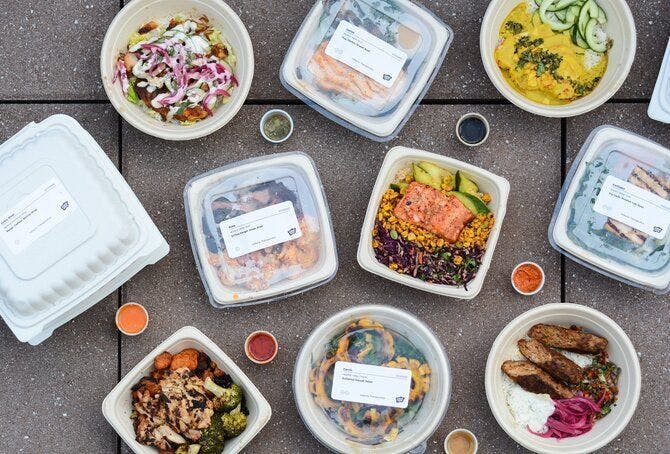


Uber Eats Group Order lets multiple people order from the same restaurant in a single shared delivery. One person starts the order and shares a link, allowing others to add their own items, customize meals, and see what everyone else is ordering in real time. Group Orders are ideal for small gatherings like family get togethers where coordinating food choices can be messy. Orders stay organized by person, and the host reviews and places the final order.
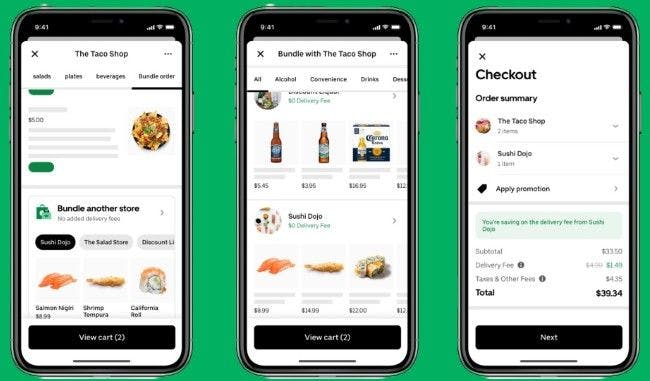
Make an Uber Eats Group Order with iPhone
- Open Uber Eats - Make sure your delivery address is set at the top.
- Choose a restaurant- Browse or search, then tap a restaurant. Make sure to add at least one item to your cart (this often unlocks Group Order).
- Start a Group Order - Tap the cart icon (bottom right). Then, tap Group order or Start group order.
- Create & share the invite - Tap Invite people and share the link via Messages, WhatsApp, email, Slack, etc.
- Set options (if shown)- Optional: set a cutoff time or spending limits.
- Guests add their food - Each person opens the link, adds items, and customizes their order. Items will appear in the cart labeled by person.
- Review & checkout - Review the full cart, delivery instructions, tip, and fees. Tap Checkout to place order.
Payment is usually handled by the host (split pay may appear in some regions).
Start an Uber Eats Group Order with Android
- Open Uber Eats - Confirm the delivery address at the top of the screen.
- Select a restaurant- Search or browse and then add at least one item to your cart.
- Enable Group Order - Tap the cart icon. Then, select Group order or Create group order.
- Invite Participants - Tap Invite to share the generated link.
- Optional Settings - If available, set order deadline, spending limits, and editing permissions
- Guests add items - Each person adds their food via the link. Names should appear next to items in the cart
- Checkout - Review the order, fees, tip, and delivery notes. Tap Checkout to place order.
Start an Uber Eats Group Order on web
- Go to ubereats.com - Log in and confirm your delivery address.
- Select a restaurant- Search or browse and then add at least one item to your cart.
- Enable Group Order - Click the cart (top right). Then, click Group order or Start group order.
- Share Group Link - Copy the invite link and send it via email, chat, etc
- Group add items - Guests open the link in their browser or app. Items show in the cart with each person’s name.
- Review and Place Order - Confirm items, delivery instructions, tip, and total. Click Checkout → Place order.
Helpful Tips for Uber Eats Group Orders
One of the most common complaints for Uber's Group Order product is that split-pay options can disappear depending on app version. Another big friction point is with invite links that open oddly, with looped login, or weird destinations. Hosts grumble about the editing rules while orderers can be confused if their order was actually confirmed.
So remember:
- One restaurant per group order
- Group Order may not appear until at least one item is added
- Split payments are region- and version-dependent. Always make sure to have the most recent version installed.
- If someone can’t add items, double-check for same delivery address, restaurant is still open, and the group order hasn’t been closed
And if you don't want the headache of an Uber Eats Group Order, check out Group Ordering from CaterCow – a foolproof way of streamlining your lunch program.
| Feature | Uber Eats Group Order | CaterCow Group Ordering (Polling) |
|---|---|---|
| Best for | Casual group meals from one local restaurant (friends, small teams, ad-hoc lunches) | Workplace catering programs and team lunches where you want individual meals + smoother office logistics |
| How it works | Host starts a group order, shares an invite link, guests add items to a shared cart, host checks out and places the order | Organizer sends a “Polling” link for select menus so each person picks a meal; organizer can add extras (drinks, desserts, buffer meals) before submitting |
| Participant experience | Guests add any items from the restaurant menu (with customizations) into the shared cart | Guests choose from a curated set of items/options in the poll (menu-dependent), designed to keep choices orderly |
| Payment options | Typically: “You pay for everybody” or “Guests pay for themselves” (availability can vary by market/account) | Typically organized payment via the organizer/company account (Polling is focused on collecting choices; payment is handled by the orderer/org) |
| Budgets & limits | Business/large-group flows support spending limits; guest-pay has constraints (e.g., split maximums) | Designed for office programs where the organizer controls scope; polling reduces over-ordering and helps right-size quantities |
| Deadlines / locking | Host can lock the order so guests can’t add/edit; often includes an optional deadline | Polling naturally creates a “pick-by” moment; once people respond, organizer can finalize and submit |
| Editing after people add items | Edits can become limited once locked / once in progress; scheduled/business group orders may restrict updates (especially when guests pay) | Organizer can make adjustments (like adding extra meals/drinks) before submitting the final order |
| Labeling & distribution | Varies by restaurant; may or may not arrive clearly labeled per person | Emphasis on individual meals delivered and labeled for easy distribution (grab-and-go) |
| Multi-restaurant ordering | Group order is for one restaurant per order | Typically one restaurant/menu per group order/poll (built for clean fulfillment); broader programs may rotate restaurants across days |
| Reliability “break points” | Link/login friction, address mismatch, item availability changes, checkout failures, and edit restrictions once locked/in progress | Menu eligibility for Polling (only select menus), response collection timing, and last-minute headcount changes (mitigated by adding buffer meals) |
| Support & operations | Consumer delivery network; support experience varies by market and restaurant | Purpose-built for catering coordination (office-friendly packaging, quantities, and coordination) |